


WeTransfer : File Transfer
4.81.12K Reviews
App Specs
- Version
- 3.8.9
- Updated On
- License
- Free
- Downloads
- 10,000,000+
- Developer
- WeTransfer BV
- Categories
- Productivity
- Platform
- Android, iOS
Screenshots
 Analysis by AppCompare
I see WeTransfer: File Transfer as a focused tool for one particular annoyance: getting a collection of photos, videos, or other files from one person to another when an email attachment feels impractical. Its appeal is not that it replaces every way of sharing, but that it makes a handoff feel simple. I’d reach for it when the recipient needs the files themselves, rather than ongoing access to a shared workspace.
A handoff, not a shared workspace
That distinction matters in everyday use. A transfer is useful when I’ve finished selecting the material and want to pass it along; it is less suited to a project where several people need to edit, reorganize, and revisit the same files over time. For that kind of collaboration, a cloud-storage folder or a shared project space is usually the better fit. WeTransfer’s strength is keeping the task narrow: prepare a batch, send it, and let the recipient collect it.
For example, after a weekend event, I might choose a set of original-quality photos and send them to a friend who is assembling an album. That avoids compressing each picture through a chat app and avoids making the friend sort through unrelated files in a long conversation. I’d still agree on which images belong in the batch first; a transfer link is a delivery method, not a substitute for choosing and labeling the right material.
Useful when the recipient is not nearby
The app is particularly appealing when the other person is not sitting beside me and a cable or nearby-sharing feature is out of the question. It can also make sense for a freelancer sending finished work to a client, or for a student handing over a video project that is awkward to attach to a message. In each case, the benefit is a clear, separate delivery rather than a pile of attachments scattered across a conversation.
I would treat the transfer as a small workflow: gather the final files, check that I have selected the intended versions, add a short note that identifies the batch, and send it. That last check is worth the moment it takes. A clean interface makes selection approachable, but it cannot prevent me from choosing a draft instead of a final export or forgetting one important image.
Why the focused approach works
WeTransfer is a free productivity app from WeTransfer BV, and the straightforward experience is its clearest advantage. It has a 4.8 average from around 194,000 ratings, with more than five million installs. Those figures suggest that the simple transfer use case resonates with a lot of people, but my recommendation depends more on whether you regularly need to deliver files than on popularity alone.
Getting Started with WeTransfer
First off, downloading and installing the app is a breeze. It's available on both Android and iOS platforms, and you can find it in the usual app stores. Once you've got it on your device, the whole setup process takes just a few taps. You're ready to start transferring those big files in no time.
Worth Reading Before You Choose

Flipboard Shows What News Apps Must Do Beyond the Feed

Switching to Android Auto Means Rethinking Your Driving Routine

Google Calendar Makes a Crowded Week Easier to Manage

Ludo King Makes the Most of the Minutes Between Plans

Baby Panda World Brings Quick Play to Modern Phones, but Its Game Library Feels Busy

ESPN’s Live Game View Makes Following Close Games Easier
Intuitive User Interface
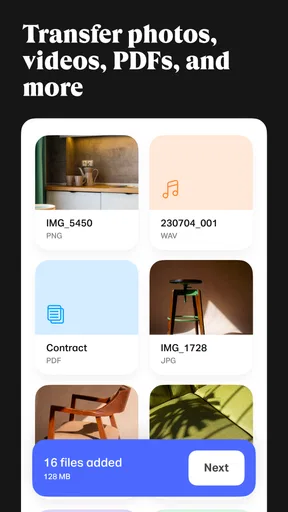
The interface is clean and straightforward, which is a huge plus in my book. WeTransfer sticks to the essentials, avoiding the clutter that plagues so many other apps. When you open it up, you’re greeted with a simple screen that prompts you to select the files you wish to transfer. No fuss, no muss.
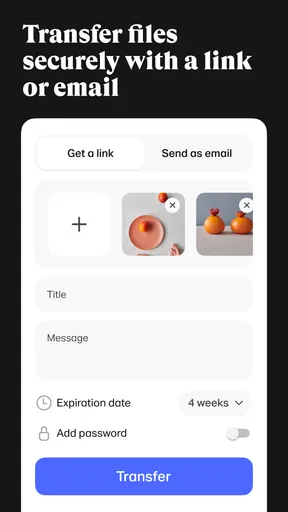
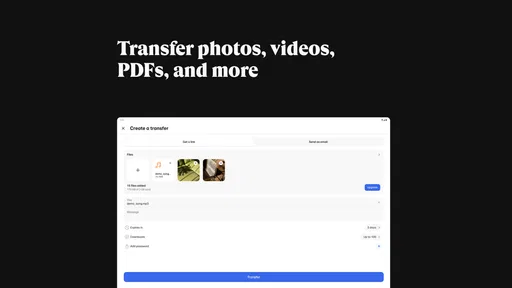
Uploading files is as easy as pie. Just tap on the plus icon, select your files, and hit send. You can even add a message to let the recipient know what’s coming their way. It’s all very intuitive, and even the least tech-savvy among us won't have a problem navigating it.
Make the transfer easier to receive
A useful habit is to make the message do a little organizational work. Instead of a vague “Here you go,” I’d identify the project or occasion and say what the recipient should expect. If I’m sharing several versions, I’d name them clearly before selecting them, so the receiver can tell which file is current without asking me to decode it later. That kind of care makes a simple transfer feel more dependable, even though it does not add collaboration tools.
Another practical consideration is the recipient’s connection. Sending a large batch may be easy for the person uploading it, but the receiver still needs a suitable internet connection and enough room on their device to download and keep the files. If someone only needs to glance at a few images, sending a smaller selection may be kinder than handing over an unnecessarily large set. Original quality is valuable when the recipient needs it; it is not automatically the best choice for every casual share.
Transfer Capabilities
What really hooked me is the app’s ability to handle large files effortlessly. We’re talking up to 2GB for free users, which is pretty generous. If you spring for the premium version, you can send files as large as 20GB. I’ve used it to send everything from high-resolution photos to lengthy video clips, and it’s never let me down.
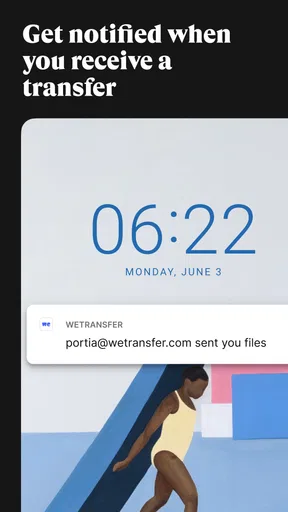
The transfer speed is impressive too. Of course, it depends on your internet connection, but generally, it gets the job done faster than you’d expect. Plus, the app sends you a notification when the transfer is complete, which is a nice touch.
What to check before sending a big batch
With a large upload, I’d avoid starting at the last minute. A weak or interrupted connection can make any transfer feel slow, and a large file naturally takes longer to move than a handful of photos. If the material is important, I’d send it when I can keep the device connected and then check the completion notice before telling the recipient to look for it. That simple sequence helps avoid the awkward “I thought I sent it” moment.
It is also worth deciding whether the recipient needs a one-time delivery or a durable place to find the files. Transfer links are convenient for passing material along, but they are not the same as a shared archive that both people can keep updating. If the recipient may need to return to the material as part of ongoing work, a shared folder is usually easier to maintain. If the goal is simply to deliver a finished set, the transfer approach is less cumbersome.
Security and Privacy
Security-wise, WeTransfer doesn’t skimp. All transfers are encrypted, ensuring your files are safe from prying eyes. You also get a transfer link that expires after a certain period, giving you peace of mind that your data won’t linger online indefinitely. These features make it a reliable choice for those who prioritize privacy.
Privacy is also about how you share
Encryption and an expiring link are reassuring parts of the experience, but I would still use judgment about what I send and who receives the link. A transfer link is meant to be passed to the intended person, so I would avoid placing it somewhere public if the files are personal or sensitive. For especially confidential material, I’d first check whether the available controls meet the needs of the situation rather than assuming that a convenient link is automatically the right channel.
The same care applies after delivery. If I’ve sent material that should not be kept indefinitely, I would tell the recipient what the files are for and whether they should save a copy. The expiry behavior can help limit how long a transfer remains available, but it does not decide what the recipient does with a file after downloading it. That is a useful boundary to keep in mind when choosing any file-transfer service.
Additional Features
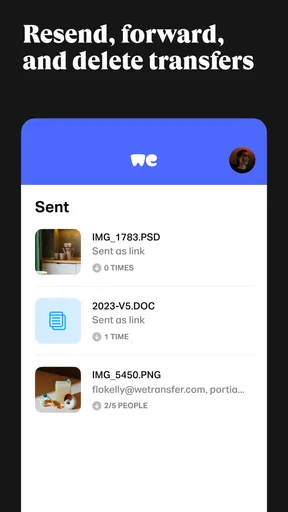
One feature I find particularly handy is the ability to pause and resume transfers. If your connection drops or you need to leave the app temporarily, you don’t have to start over. Just pick up where you left off, which is a lifesaver when dealing with massive files.
The premium version offers even more perks like personalized URLs, password-protected transfers, and custom expiration dates. It’s worth considering if you find yourself using the app regularly for business or creative projects.
When paying makes sense—and when it doesn’t
The app is free to use, while optional in-app purchases range from around $18 to $230 per item. I would not pay simply because I occasionally need to send a photo or document; ordinary messaging or email may already handle those small jobs with less effort. Paid options make more sense for someone who repeatedly delivers large batches and has a practical reason to use features such as password protection or more control over how a transfer is presented and timed.
I’d also compare the paid plan with the way I already work. If my clients need a permanent project folder, version history, or shared editing, paying for a transfer-focused tool may not solve the real problem. If I mainly need to send finished material without turning every delivery into a cloud-folder setup, the extra controls could be worthwhile. The best choice depends on whether I’m buying convenience for a recurring handoff or trying to make the app do a different job.
Who should choose it
I’d recommend WeTransfer to people who send original-quality photos or video, creative workers who deliver finished files, and anyone who finds email attachments awkward but does not need a full collaboration suite. Its Everyone content rating makes it broadly accessible, and the app is currently at version 3.4.1, with a minimum operating-system requirement of 7.0. Those compatibility details are worth checking against your device before you install it.
I’d skip it if nearly all my sharing is small files in a chat, if I need a shared library that stays organized and editable, or if I cannot rely on a stable connection for a large upload. In those situations, a messaging app, nearby transfer method, or cloud-storage service may fit better. The convenience here comes from a focused handoff, not from being the best answer to every kind of file sharing.
Final Thoughts
In a world where we’re constantly sharing digital content, having a reliable tool like WeTransfer: File Transfer is essential. It’s simple, efficient, and gets the job done with minimal hassle. Whether you're sending work documents or sharing vacation videos with family, this app makes the process a whole lot easier. So, go ahead and give it a whirl—your email will thank you!
My verdict is more specific: I’d keep it available for the occasions when a finished set of large files needs to reach someone without being squeezed into email or buried in a chat. Its uncluttered approach, pause-and-resume convenience, and useful transfer controls make that job approachable. Just choose the right tool when the need is ongoing collaboration, a permanent shared archive, or a tiny file that is easier to send another way. For the right handoff, it earns a place on my phone.
Pros
- Simple and intuitive user interface.
- Fast file transfers with high speed.
- No account required for basic use.
- Supports large file sizes up to 2GB.
- Secure transfers with encryption.
Cons
- Limited storage time for free users.
- No folder transfer capability.
- Ads in the free version can be intrusive.
- File size limit without subscription.
- No direct integration with cloud services.
FAQs for WeTransfer : File Transfer
What is WeTransfer and how does it work?
WeTransfer is a file transfer service that allows users to send large files up to 2GB for free. The process is straightforward: you upload your files, enter the recipient's email, and WeTransfer sends them a download link. It's ideal for users who need to share high-resolution images, videos, or large documents quickly and easily.
Is WeTransfer secure for sending sensitive files?
WeTransfer utilizes encryption in transit to protect your files as they are being sent. However, it’s important to note that files are not encrypted at rest unless you use WeTransfer Pro, which offers password protection and enhanced security features. For highly sensitive files, consider additional security measures.
Do I need to create an account to use WeTransfer?
No, you don't need an account to use WeTransfer for sending files up to 2GB. However, creating an account or subscribing to WeTransfer Pro allows you to send larger files, customize your downloads, and access additional features like setting expiration dates and using password protection.
How long are files available for download on WeTransfer?
For free users, files sent via WeTransfer are available for download for seven days. After this period, they are automatically deleted from the servers. WeTransfer Pro users can extend this time, choosing how long files remain available, from a week up to a month or more.
Are there any limitations on the types of files I can send with WeTransfer?
Generally, WeTransfer supports a wide range of file types including documents, images, videos, and audio files. However, there may be restrictions on executable files or files that could pose security risks. It’s always best to check their terms of service for specific limitations related to file types.


